Setting up your Google Gemini API key
Live Translate and RX Transcript are the two AI features in the TCI Remote Compactor. Neither of them can run until you have created a Google Gemini API key of your own and entered it in the Compactor. Every station uses its own key, and the AI usage is billed to that key. This page walks you through it once, from start to finish.
The key you are about to create is yours, it is tied to your own Google account, and whatever these two features consume is charged to it — not to DecoSoap. Read the Billing and daily limits section at the bottom before you switch RX Transcript on. It is short, and it is the part that costs money if you skip it.
Open the Compactor and go to the Live Translate tab
Start the TCI Remote Compactor and click the Live Translate tab. Tick Enable Live Translate. The key field below it is empty for now — that is what the rest of this page is about.
The [?] button next to the title opens the built-in help. It explains what the feature costs, what it sounds like on the air and what it cannot do. It is worth reading before you put a translated voice on the band.
RX Transcript has no key of its own. There is one key field, the one on this tab, and both features use it. Do not go looking for a second one.
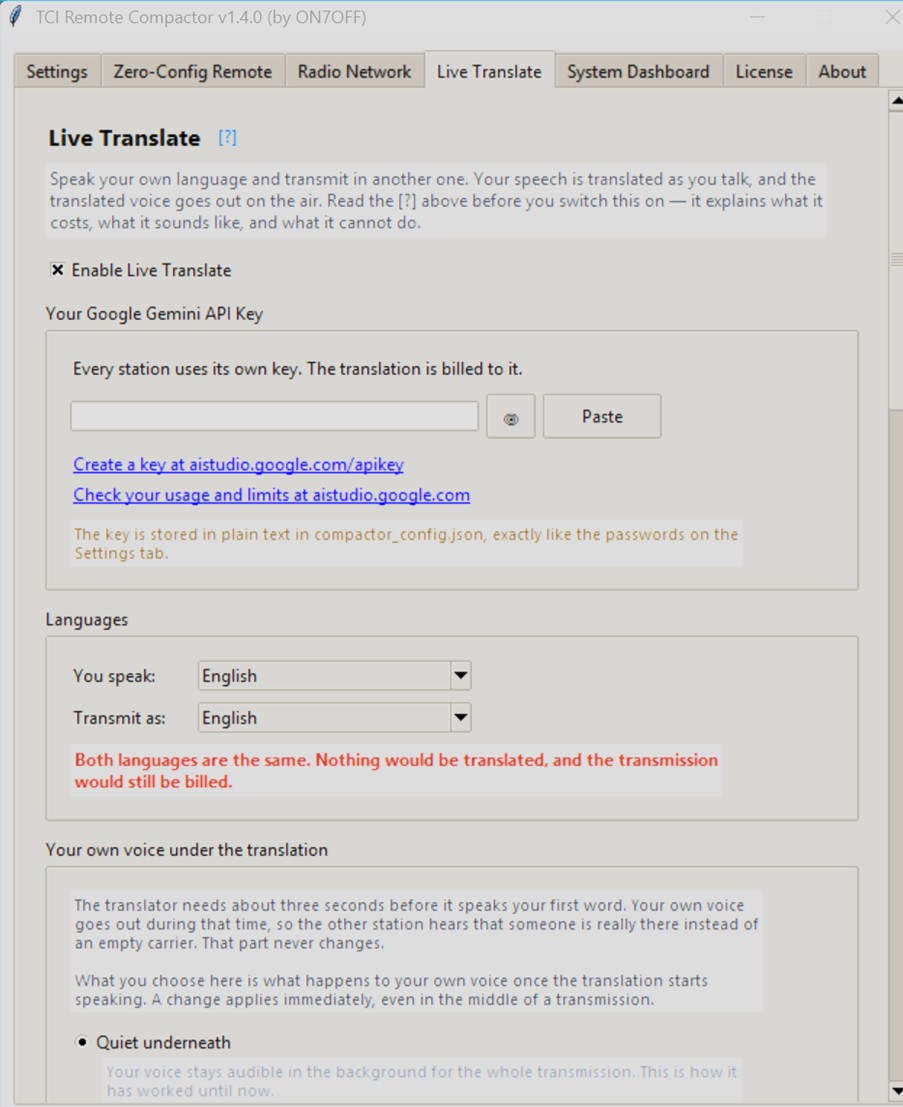
Open Google AI Studio and accept the agreements
In that same tab, click the link Create a key at aistudio.google.com/apikey. Your browser opens Google AI Studio. Sign in with your Google account, and you get the welcome screen below.
Tick the agreement boxes and click Continue. The first box is required; the second one, about emails from Google, is not.
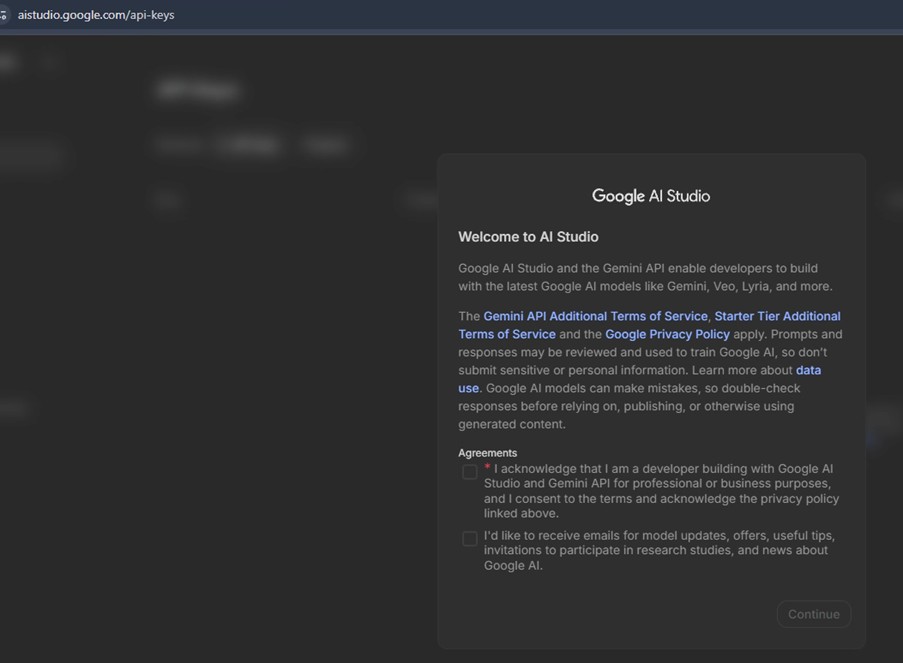
Read the terms on that screen rather than clicking past them. On Google’s free tier, what you send may be reviewed and used to improve their models. On radio we are not passing sensitive personal information, so for most operators the free tier is a reasonable choice — but it is your call, and if you would rather your traffic were not used for training, you need a paid tier instead of the free one.
Either way, the audio goes straight from your own computer to Google over an encrypted connection. It does not pass through any DecoSoap server, and we never see it, your transcripts, or your key. See clauses 11.6 to 11.9 of the EULA for the full wording.
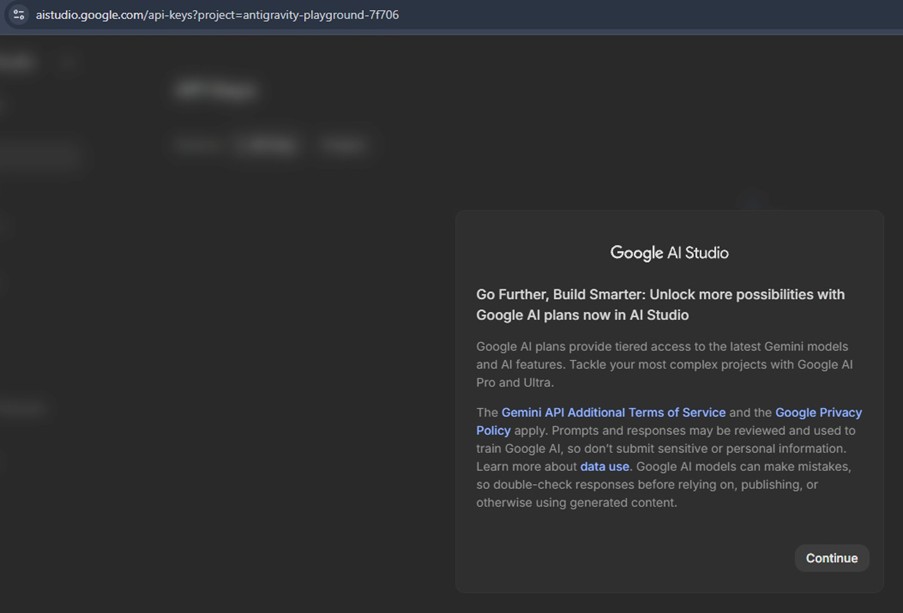
Continue past the plans screen
Google now offers you their paid plans. You do not need one to get started. Click Continue.
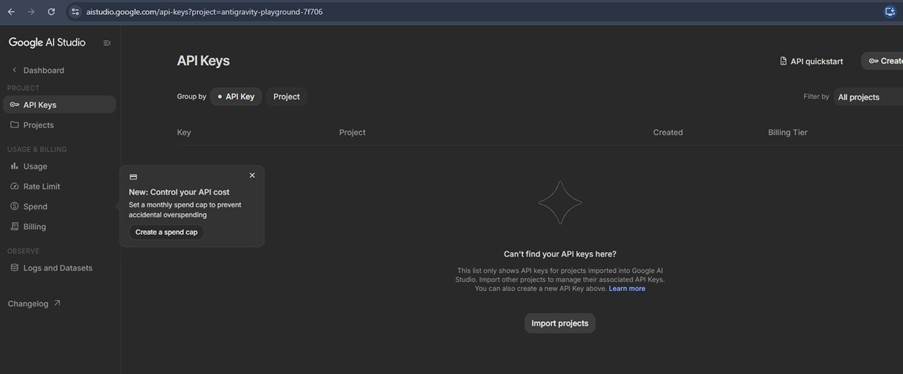
You land on the API Keys page
If you have used AI Studio before and already have a key here, you can simply copy that one and skip ahead to step 7. For most people the list is empty, as below.
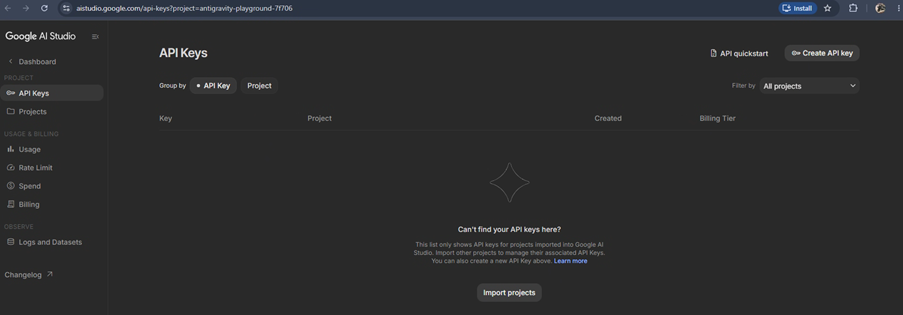
Click Create API key
The button sits at the top right of the page. If a tip about spend caps pops up, you can close it — or set one, which is not a bad idea at all.
Accept the defaults in the dialog
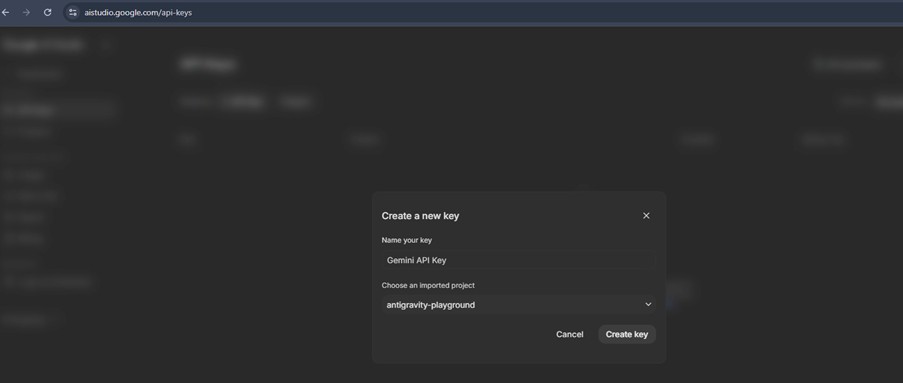
A small dialog asks for a name and a project. If the name is already filled in, leave it.
If it is empty, type anything you will recognise later, such as
TCI Remote. Leave the project on whatever Google suggests: the suggested
project is the one set up for free-tier use. Then click
Create key.
Copy the key
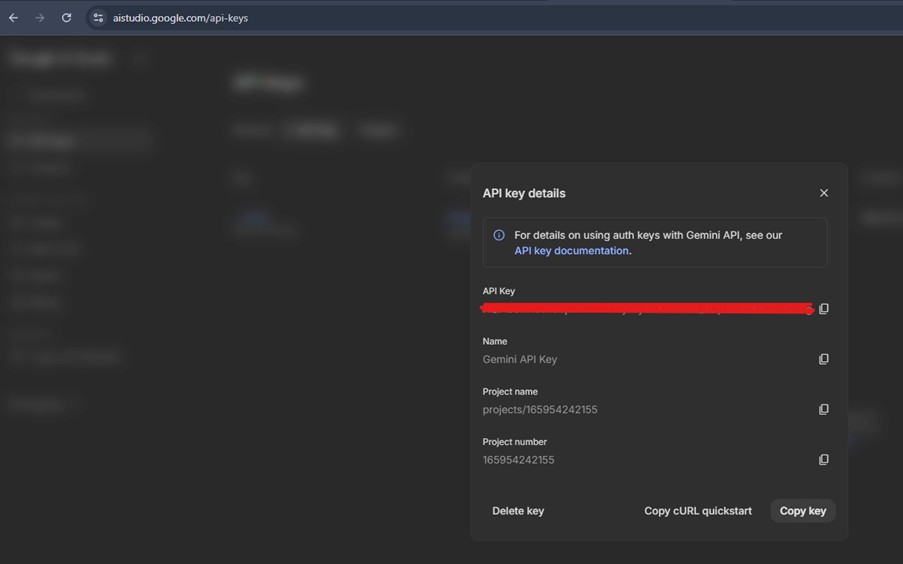
Google shows the key once, on the line marked API Key. Use the copy button at the right-hand end of that line, or the Copy key button at the bottom of the dialog.
Treat it like a password. Anyone who has it can spend your allowance. In the screenshot below the key itself has been painted over for exactly that reason.
Paste it into the Compactor — and save
Go back to the Compactor, to the Live Translate tab, and click Paste next to the key field. The key stays hidden behind asterisks; the eye button beside it shows it if you need to check it.
Scroll all the way down the Live Translate tab and click Save Live Translate Settings. Without it the key is not stored, and the next time you start the Compactor it is gone. This is the single step people forget.
Set You speak and Transmit as to two different languages. If both are the same, nothing gets translated and the transmission is still billed — the Compactor warns you in red when that happens.
Billing and daily limits
Both features are charged by Google, by the minute, to your own key. They behave very differently, and the difference matters.
| Feature | When it costs you |
|---|---|
| Live Translate | Only while you transmit with the LT button green in the TCI Remote app. Key it up, it runs; let go, it stops. You are in control of every minute. |
| RX Transcript | Whenever it hears a voice on the receiver — and the band does not stop talking because you walked away from the radio. Leave it on and forget about it, and it will keep consuming. |
Both features have a Daily limit field on the Live Translate tab,
in minutes per UTC day. Each one starts at 60 minutes. When the limit is
reached, that feature switches itself off until 00:00 UTC. Setting a limit to
0 switches that feature off completely.
RX Transcript counts speech only, not silence: the Compactor sends a transmission only when it actually hears a voice. A weak signal is sent twice, to check what was heard, and counts twice.
Lower these numbers before you leave the radio running. That is what they are for.
What you spend at Google is between you and Google. DecoSoap BV cannot see your usage, cannot cap it at Google’s end, and accepts no responsibility for charges you run up — in particular if you leave RX Transcript running unattended. Depending on how your Google project is configured you will either run into the free tier’s limits, which costs nothing, or be billed.
The Compactor counts the minutes it sends and shows them to you, and the Check your spenditure at aistudio.google.com link takes you to Google’s own usage page. We deliberately show you minutes rather than a figure in euros: discounts and free allowances are applied at Google’s end, so any amount we printed would be wrong.
It is not a pot of tokens that empties. Google’s free tier is a set of rate limits — requests per minute, tokens per minute and requests per day — and they reset. On the free tier you are never billed: once you pass a limit the request is simply refused, and you are back in business after the reset.
How much that is, nobody outside Google can tell you, and the figures you find on blogs are guesses. Google stopped publishing them per model because they change them without notice. Your own limits are shown in AI Studio, under Rate Limit in the left-hand menu. That page, for your own account, is the only reliable answer to “how much do I get?”
Two things worth knowing before you count on it. The models these two features use are Live models, and free allowances on those are small compared to ordinary text models. And the tier is set per project, not per key — so you can leave one project on the free tier and put billing on another.
What it costs once billing is on
These are measured figures, not estimates: the price Google lists and the price we metered in September 2026 agree to the cent. Google sets them and can change them.
| Feature | Model | Cost |
|---|---|---|
| Live Translate | Gemini 3.5 Live Translate | $0.037 per minute you transmit, per target language |
| RX Transcript — Standard | Gemini 3.5 Live Translate | $0.037 per minute of received speech, per listener language |
| RX Transcript — Delayed translation | Gemini 3.8 Flash | About seven times less, roughly $0.005 per minute |
Each language is a separate session, so two listeners in two languages cost twice one. With both daily limits left at their default of 60 minutes, the worst case is roughly $2.20 per day for one feature in one language. If that matters to you, Delayed translation does the same job on RX for a fraction of it.
If you run into the limits
You will notice it in the Compactor’s log: the AI service answers
429 — resource exhausted and the feature stops. Nothing breaks,
nothing is charged, and on the free tier it starts working again by itself once the
limit resets.
Three pages in AI Studio’s left-hand menu tell you where you stand: Rate Limit for the limits that apply to your project, Usage for what you have actually used, and Spend for what it came to.
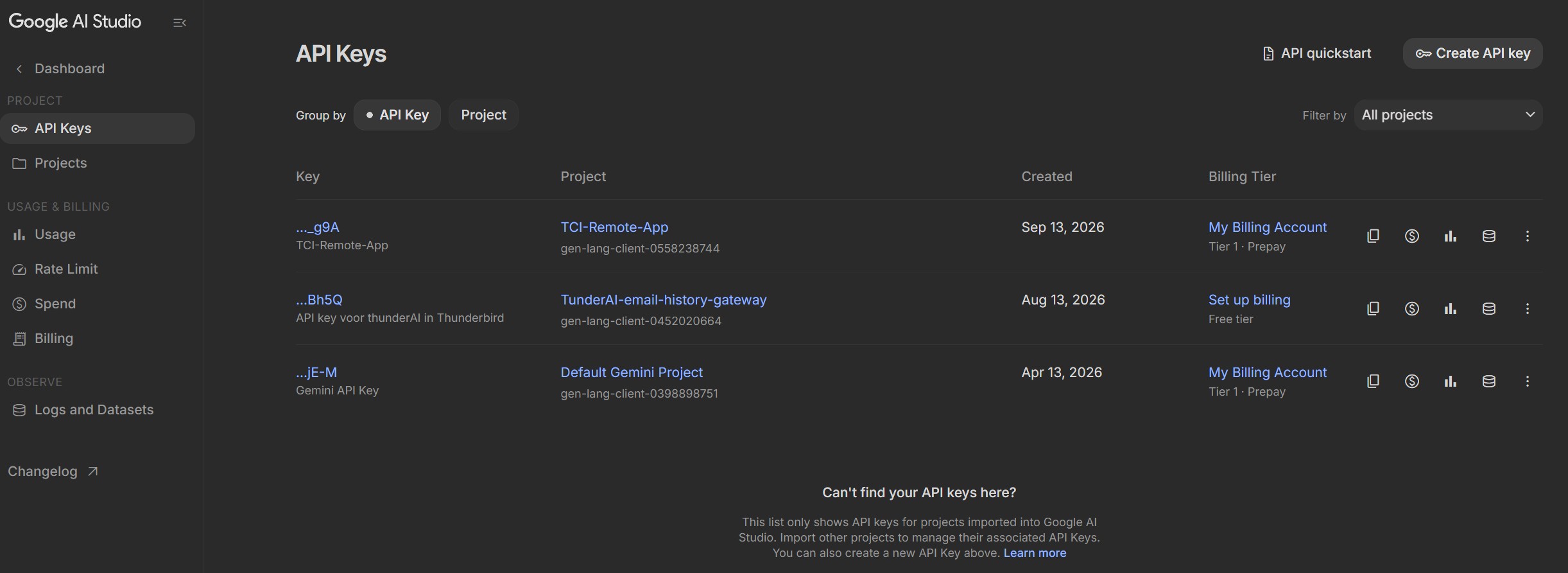
You do not buy tokens in advance and you do not create a new key. You put billing on the project your key already belongs to:
- Open the API Keys page and find the line for your key.
- In the Billing Tier column, click Set up billing.
- Choose an existing Cloud Billing account or create one, then pick Prepay, where you top up a balance in advance and can only lose what you put in (minimum $5), or Postpay, where you are invoiced afterwards. For this, prepay is the safer of the two.
- The upgrade takes effect within minutes. Your key does not change — there is nothing to re-paste in the Compactor.
Billing is set per project, so a project you leave alone stays on the free tier. And if you want to go back, disabling billing on the project returns it to free-tier limits.
Then the obstacle is the Google Cloud billing account, not your key and not the Compactor. Not every country is supported, and school, company and managed Google accounts often have billing blocked by their administrator. A personal Google account in a supported country, with a payment method Google accepts, is what the process expects.
I run a paid key myself, so I cannot see what a free account is allowed in practice. If you run one, I would be glad to hear how far it got you — I will put real numbers on this page so the next operator does not have to guess.
— ON7OFF