This guide walks you through the complete installation and configuration of TCI Remote Compactor and the TCI Remote Android app. Please read all steps carefully and in order before starting.
This guide covers three parts: preparing Thetis, installing and configuring the Compactor on Windows, and setting up the TCI Remote app on your smartphone.
Part 1 — Prepare Thetis First
Make sure you have Thetis version 2.10.3.14 or higher.
In Thetis, go to Setup → Setup → General → F/W SET.
Make sure the RX1 Sample Rate is set to at least 96000.
In the same Setup window, go to the Serial/Network/MIDI CAT tab, then choose Network.
In the Bind IP:PORT field, replace whatever is there with:
0.0.0.0:50001
Then find the toggle button labelled "TCI SERVER RUNNING?" — toggle it Off, then back On again to apply the change.
✅ Thetis is now ready to work with TCI Remote Compactor.
Part 2 — Install TCI Remote Compactor (Windows)
If you have a previous version installed, uninstall it first.
Before proceeding, quit the Compactor if it is running. Look in the bottom-right corner of the Windows taskbar (next to the clock). Right-click the TCI Remote Compactor tray icon and choose Quit.

Now go to Add or Remove Programs in Windows. Click the Start menu and start typing: add or remove programs — it will appear. Click it to open.
Search for TCI Remote. Click Uninstall.
"Do you want to keep your configuration files?"
Click NO if you want a completely clean install. Then continue with Yes until the uninstall completes.
Optional but recommended — delete any leftover configuration files.
Click Start and type powershell. When it appears, right-click it and select "Run as Administrator".
In the black PowerShell window, copy and paste the following command and press Enter:
Remove-Item "$env:APPDATA\TCI Remote Compactor\*" -Recurse -Force
This deletes all leftover configuration so you start completely fresh.
Download and install the latest version of TCI Remote Compactor.
Download the installer from: pure-editions.com/on7off/TCI-Remote-Compactor/
Run the installer and follow the steps until installation is complete. The Compactor window will open automatically when done.
Open the Compactor window.
After installation the Compactor will open automatically. If you only see a tray icon (bottom-right corner, next to the clock), double-click it to open the main window.
Enter your license key.
In the Compactor window, click the License tab. Paste your license key using the paste button, then click Activate. The license status should turn green.
A license key looks like this:
Configure the Settings tab.
Click the Settings tab. Enter the IP address of your TCI server (the computer running Thetis).
| Situation | Server address to use |
|---|---|
| Thetis on the same computer | 127.0.0.1:50001 |
| Thetis on another computer (same network) | 192.168.x.x:50001 |
Click Save Settings.
Default master password:
mastersecretDefault TX password:
txsecretDefault RX password:
rxsecretSet up Zero-Config Remote Access and generate your PIN.
Click the Zero-Config Remote tab.
- Check "Enable Zero-Config remote access".
- Type your amateur radio callsign (must match exactly what you entered when purchasing the license).
- Click "Generate PIN".
- Wait up to 2 minutes for the tunnel to be created. The status indicator will turn green when ready.
You will need to enter them in the TCI Remote app in the next step.
Part 3 — Configure the TCI Remote App
Open the TCI Remote app on your smartphone and tap Config (the settings icon).
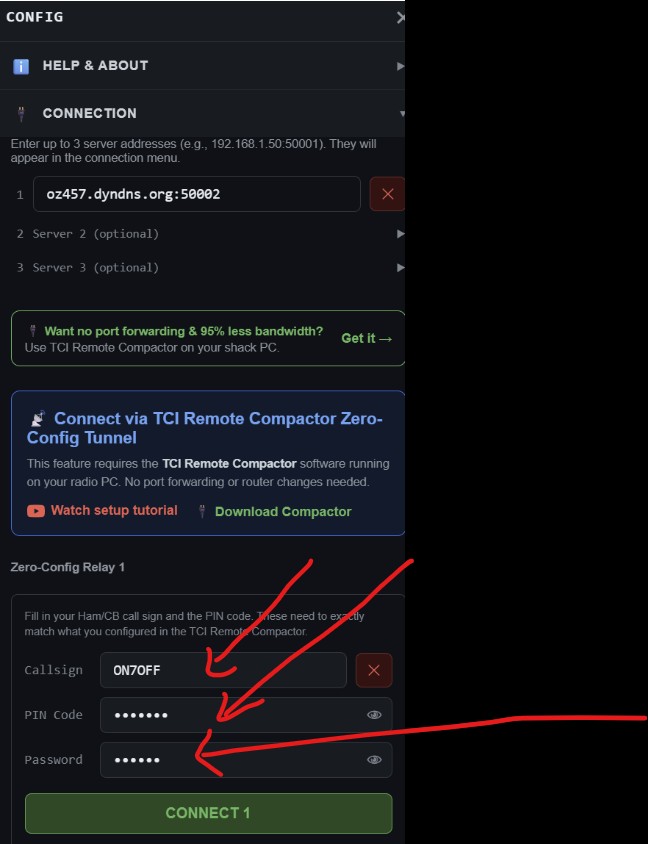
Under Zero-Config Relay 1, fill in the following:
| Field | Value |
|---|---|
| Callsign | Your callsign (same as in the Compactor) |
| PIN Code | The 6-digit PIN shown in the Zero-Config Remote tab |
| Password | Your TX or Master password (default: txsecret) |
Fill in the Station & Logging section.
Scroll down in the Config menu and open Station and Logging. Fill in all missing fields.
Connect!
Scroll back up in the Config page and tap CONNECT 1.
✅ The connection should now be established. You will see the frequency, panadapter, and compression statistics in the app.
💬 Join the Discord support channel